WebLaunch AI

Built for trades & builders ready to grow a serious brand online

Web presence to grow your pipeline.

Host a customer-facing site that stays in lockstep with your ERP and field service stack—capture leads, publish on-brand pages, and scale from your first dispatch to your thousandth work order.

Knowledge base

How the WebLaunch workspace works

Deep dives into domains, publishing, AI editing, leads, and governance—written for operators who need to know what the product does, not just where buttons sit.

Getting oriented Workspace & dashboard One signed-in home for every site you run: dashboard cards per hostname, a domain switcher on site tools, and primary nav to Leads, Forms, Analytics, and Vibe Code—without juggling accounts.
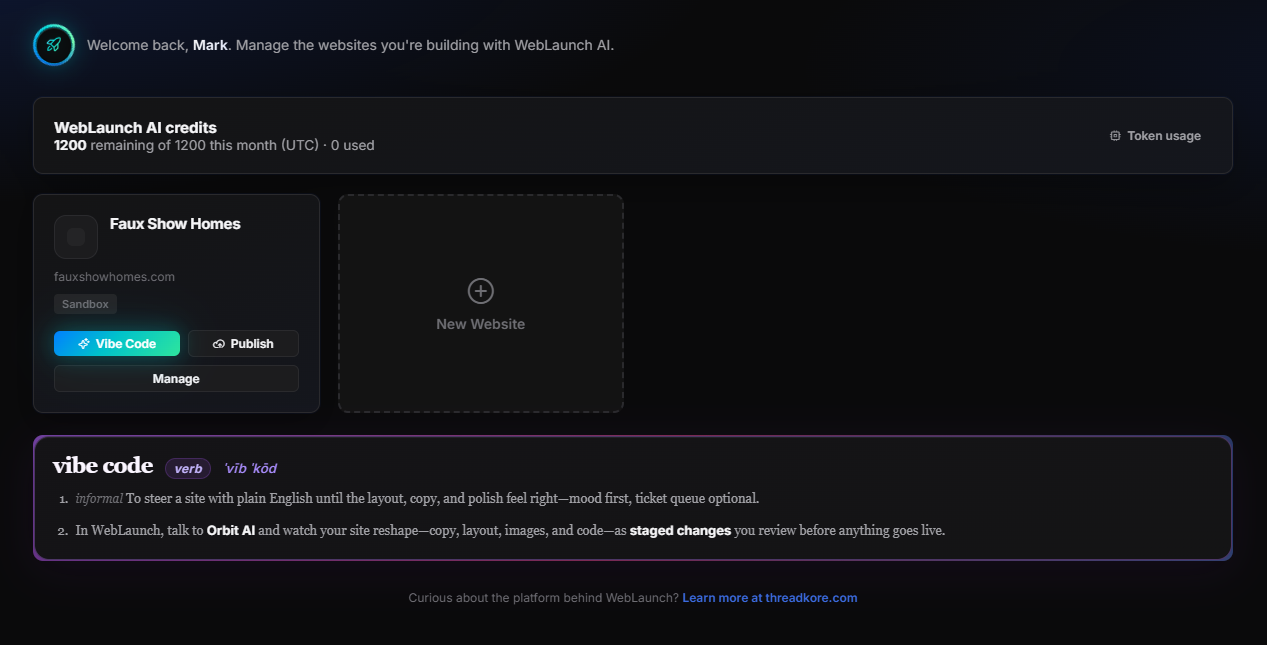
After you sign in, WebLaunch loads a fixed workspace shell: top bar (brand, primary navigation, Orbit credits, theme toggle, and your profile). The shell stays consistent so muscle memory transfers—only the content below changes.

Primary navigation

Item Purpose
Dashboard Every hosted hostname your company can manage—open a site to work on DNS, content, and leads.
Leads, Forms, Analytics Pipeline, capture, and front-end metrics for the selected site.
Integrations ThreadKore / JobCloser links and connection settings for the current site context.
More Audit History, AI Token Usage, Users, Company Settings, and (when linked) shortcuts to ThreadKore or JobCloser portals.
Vibe Code WebLaunch AI visual editing with live preview for the selected domain.

Site switcher

When your company has more than one site, a Site dropdown in the top bar (next to your profile) sets the active domain for Leads, Forms, Analytics, Integrations, Vibe Code, and related tools—pick the hostname you’re working on without signing out.

Typical flow

  1. Open Dashboard to see every hosted site as a card.
  2. Jump into Vibe Code, Forms, or DNS flows for that brand.
  3. Use More for tenant-wide tools (users, company profile, audit trail, AI usage).
Permissions still apply. Users only see domains and actions their role allows—the shell does not bypass your company’s access rules.

Dashboard cards

Each card is one customer-facing hostname. From there you open publishing, DNS status, theme work, and lead features scoped to that site.

  • Staging vs live: Draft work stays in your editing flow until you publish.
  • Cross-site work: Switch sites from the top bar in the same session; no need to log out.
Sites & DNS Domains, hosting & publishing Point your domain at WebLaunch, validate DNS, and get automatic HTTPS—then publish draft theme work when you’re ready for customers to see it.
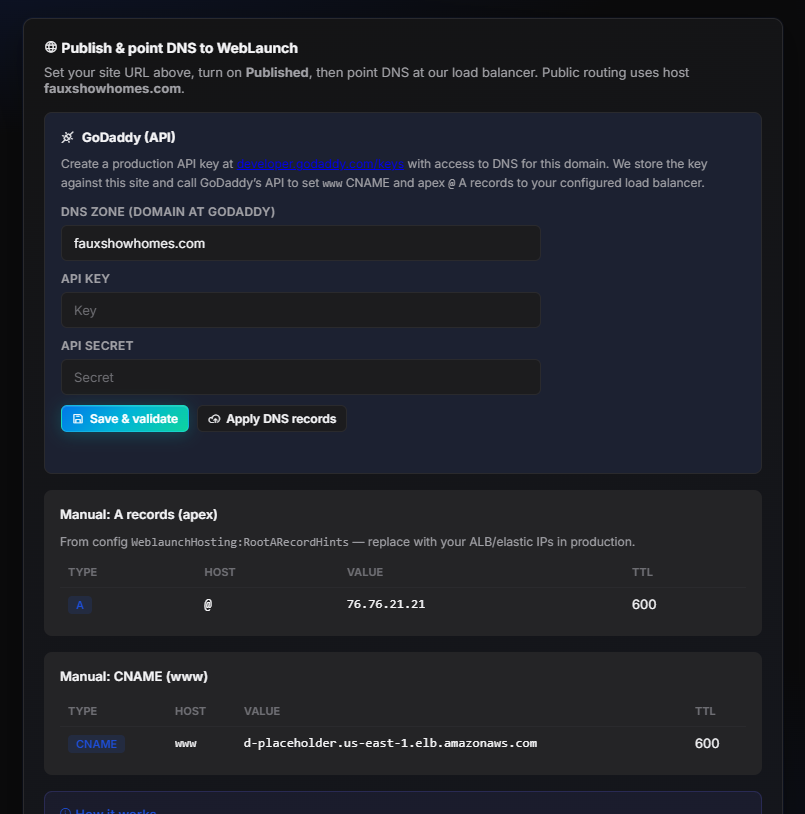
Manage hostnames under Your sites (/domains). WebLaunch serves your static theme assets and HTML shell from our edge stack; to go live, DNS must point at the targets shown in the domain wizard—usually CNAME/A records, sometimes TXT for verification.

Common DNS patterns

Goal Typical record Notes
Root domain (apex) A or ALIAS Use the values we display; avoid mixing stale IPs from old hosts.
www subdomain CNAME Often the simplest path to HTTPS and CDN routing.
Ownership / SSL TXT Required only when the wizard asks for verification.

HTTPS & certificates

When DNS validates, we issue or renew TLS certificates automatically—no manual PEM uploads. Until validation completes, the site stays in a staging-safe posture.

Propagation takes time. DNS can take minutes to 48 hours depending on TTL and resolvers. The dashboard reflects when we can see your records.

Publishing

Publishing promotes draft theme changes (Quick Start or Webmaster) to the live hostname. Assets are fingerprinted so browsers cache aggressively while you iterate.

  1. Finish edits in draft (or accept AI changes in review).
  2. Publish from the site workflow when you are ready for visitors.
  3. Verify the live hostname in an incognito window to avoid stale cache.
Launch Quick Start & themes Industry presets, logos, and starter service pages—so crews and office staff get a credible site fast, still under your control before anything goes live.
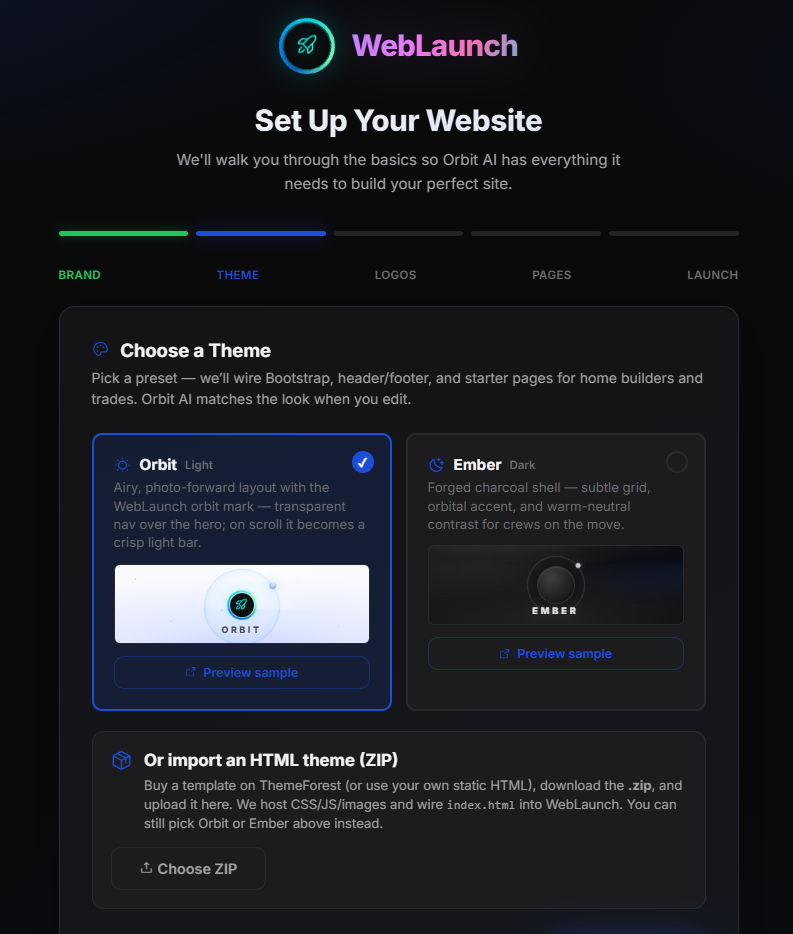
Quick Start is the guided path when you add or first configure a site: industry presets, logos, starter pages, and a cohesive theme package—ideal when you need a credible presence for a trade or home-services brand without starting from a blank HTML file.

What you configure

  • Presets: Layout and typography tuned to your industry so you are not starting from a blank canvas.
  • Brand assets: Logos and colors that flow into headers, footers, and hero sections.
  • Starter pages: Services, service areas, portfolio slots, and contact paths you can rename immediately.

Before anything is public

Nothing goes live until you confirm. Quick Start writes into your site’s draft theme so you can refine copy in WebLaunch AI afterward without exposing half-baked pages.

Stage What happens
Draft Theme and pages exist only in your workspace until you publish.
Review Edit in Webmaster, preview desktop/mobile, iterate with AI.
Publish Visitors on your hostname see the promoted assets.
Already have HTML? Import a static ZIP theme; WebLaunch hosts the assets and keeps AI aware of your structure for safer edits.
Editing & AI Webmaster & WebLaunch AI (Vibe Code) Vibe Code is your visual editor: real preview, desktop/mobile, and AI-assisted copy and layout—you accept or reject every change before it hits your draft.
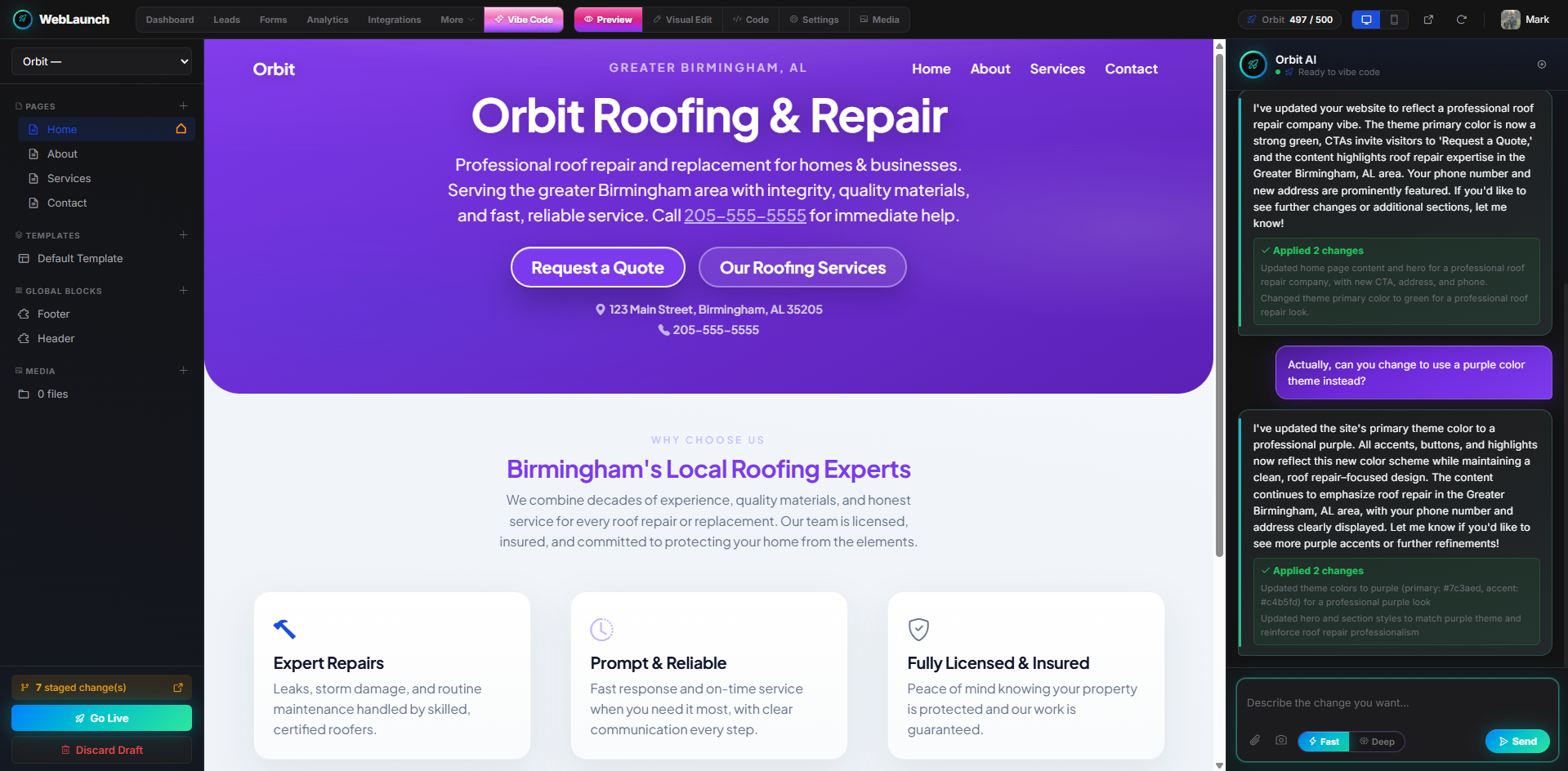
Open Vibe Code from the top bar (/webmaster) after selecting a site. This is the visual editor: live preview, device toggles, and a conversational panel for WebLaunch AI.

How AI changes are applied

  1. You describe the change (tone, section, layout hint).
  2. AI proposes a non-destructive update—you review before it lands.
  3. Accept merges into your draft; reject leaves the page unchanged.

Preview & devices

Control Use it for
Desktop / tablet / phone Catch line-length and stacking issues before publish.
Live preview See real HTML/CSS, not a simplified mock.
History / rollback Return to earlier HTML snapshots stored per site.
Credits: Orbit usage accrues when AI generates or rewrites meaningful blocks. Skimming the preview alone does not burn credits—usage is summarized under company tooling.

Operational tips

  • Make one intent per message for clearer diffs.
  • Publish only after you have walked the main conversion paths.
  • Keep brand/legal claims human-reviewed even when AI drafts the copy.
Growth Leads, forms & analytics Hosted forms with attribution, handoff to ThreadKore or JobCloser when linked, and built-in funnel metrics so you see which pages and campaigns actually book work.
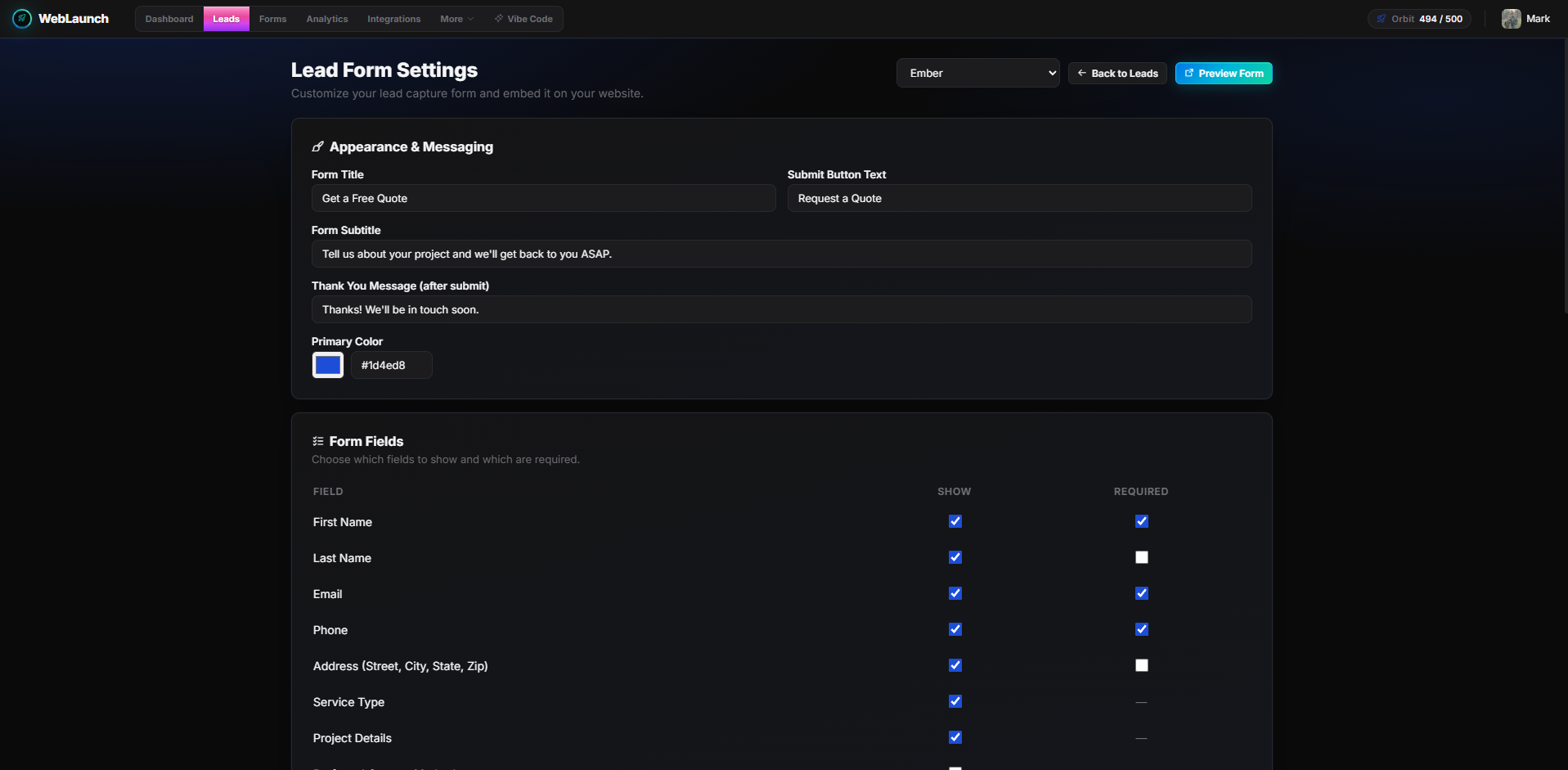
Leads (/leads), Forms (/forms), and Analytics (/analytics) are site-scoped—pick the domain first. Hosted forms post into WebLaunch for validation and abuse checks, then forward structured leads to ThreadKore or JobCloser when integrations are configured.

What travels with each lead

  • Field values from the form (name, phone, project type, …).
  • Attribution: Page URL, UTM parameters, and referrer when the browser provides them.
  • Context: Which site and form name produced the submission.
Destination Best for
ThreadKore Operational workflows, scheduling, and job-centric pipelines.
JobCloser Sales follow-up and contractor-style CRM stages.
WebLaunch only Review exports or interim capture before integrations go live.

Analytics

Analytics aggregates front-end events—page views, form starts, completions—so you can compare campaigns without wiring a separate tag manager for basic funnel metrics.

Tip: Align UTM naming in ads with the labels you use in reports so week-over-week comparisons stay clean.
  1. Define the key conversion (form submit vs phone click).
  2. Watch starts vs completes to spot field friction.
  3. Slice by landing page to see which offers pull qualified leads.
Connections Integrations & company profile Connect ThreadKore and JobCloser with stored credentials, tune company branding defaults, and keep WebLaunch as the public web layer—ERP and CRM stay authoritative.
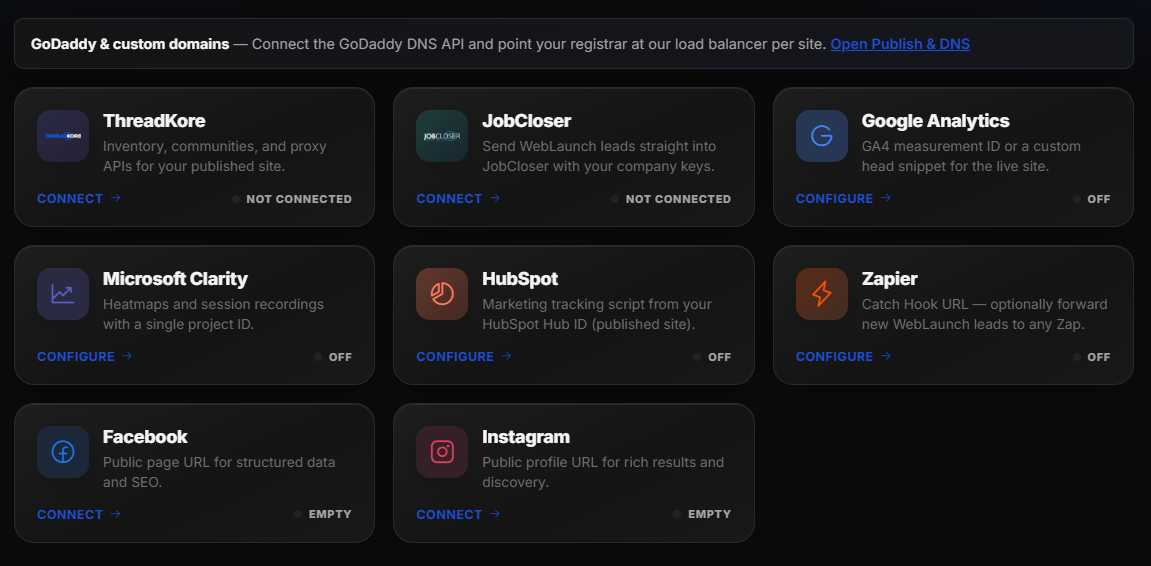
From Integrations (/integrations—scoped to the site you select), administrators connect JobKore products. Links store secure tokens scoped to your company so WebLaunch can call upstream APIs without sharing passwords in plain text.

Common connections

Product Role
ThreadKore Operations-heavy workflows tied to jobs and scheduling.
JobCloser Contractor-centric CRM and sales stages.

Company profile

More → Company Settings (/domains/company) holds brand defaults—primary color, logos, legal name—that feed Quick Start, exports, and customer-facing chrome.

  • Changing defaults does not rewrite old published pages until you republish those sites.
  • Keep legal names and disclaimers aligned with what your contracts require.
Boundary: WebLaunch is the web tier. Authoritative business data still lives in ThreadKore/JobCloser; integrations push outbound from WebLaunch into those permission models—they are not replaced.
Governance Users, roles & audit history Invite staff, assign roles and domain access, and rely on audit history for publishes, DNS, AI merges, and integrations—under More → Users and Audit History.

Administrators invite teammates from More → Users (top bar). Each account is tied to your WebLaunch tenant and can be restricted to specific domains or roles.

Invitation flow

  1. Send an invite to the user’s email.
  2. They accept and set credentials under your tenant.
  3. You assign roles and, if needed, limit which sites they can touch.

Audit history

Open More → Audit History (/domains/audit) for a chronological trail. Super-admin activity uses separate screens when your account has that access.

Category Examples
Publishing When draft HTML went live for a hostname.
DNS & domains Record changes that affect routing or validation.
AI acceptances When proposed copy or structure was merged into the site.
Integrations Connection updates and credential rotations.
Entries include actor, timestamp, and payload fingerprints suitable for internal compliance review—not a substitute for legal advice, but a solid operational trail.

Sessions & super-admin

  • Signing out clears session cookies for that browser.
  • Super-admin capabilities (tenant list, activity) only appear when your account is flagged—standard site editors never see them.
Billing & AI AI tokens & usage Shared Orbit credits for generative work: see usage by site and time range, and know what happens when the pool runs dry—published sites keep running for visitors.

WebLaunch AI draws from a shared Orbit credit pool per company (shown in the top bar). Heavier prompts, larger rewrites, and multi-step refactors consume more credits than tiny copy tweaks.

For detailed reports, open More → AI Token Usage (/domains/tokenusage)—pick a site and time range to see where generative work concentrates.

What tends to consume credits

  • Generating new sections or restructuring layouts.
  • Long-form rewrites across multiple blocks.
  • Iterative back-and-forth that produces large HTML each turn.

What usually does not

  • Loading Vibe Code and viewing the preview without accepting AI output.
  • Short clarifications that do not merge into the page.
Report Helps you
Usage by site See which brands or microsites drive AI spend.
Time range Align marketing pushes with credit spikes.
Finance view Reconcile Orbit consumption with invoices or internal chargeback.
When credits hit zero: generative features pause or queue depending on your configuration. Published sites keep serving—visitors are unaffected; only AI-assisted editing stops until the pool is replenished.

Workspace & dashboard

After you sign in, WebLaunch loads a fixed workspace shell: top bar (brand, primary navigation, Orbit credits, theme toggle, and your profile). The shell stays consistent so muscle memory transfers—only the content below changes.

Primary navigation

Item Purpose
Dashboard Every hosted hostname your company can manage—open a site to work on DNS, content, and leads.
Leads, Forms, Analytics Pipeline, capture, and front-end metrics for the selected site.
Integrations ThreadKore / JobCloser links and connection settings for the current site context.
More Audit History, AI Token Usage, Users, Company Settings, and (when linked) shortcuts to ThreadKore or JobCloser portals.
Vibe Code WebLaunch AI visual editing with live preview for the selected domain.

Site switcher

When your company has more than one site, a Site dropdown in the top bar (next to your profile) sets the active domain for Leads, Forms, Analytics, Integrations, Vibe Code, and related tools—pick the hostname you’re working on without signing out.

Typical flow

  1. Open Dashboard to see every hosted site as a card.
  2. Jump into Vibe Code, Forms, or DNS flows for that brand.
  3. Use More for tenant-wide tools (users, company profile, audit trail, AI usage).
Permissions still apply. Users only see domains and actions their role allows—the shell does not bypass your company’s access rules.

Dashboard cards

Each card is one customer-facing hostname. From there you open publishing, DNS status, theme work, and lead features scoped to that site.

  • Staging vs live: Draft work stays in your editing flow until you publish.
  • Cross-site work: Switch sites from the top bar in the same session; no need to log out.

Domains, hosting & publishing

Manage hostnames under Your sites (/domains). WebLaunch serves your static theme assets and HTML shell from our edge stack; to go live, DNS must point at the targets shown in the domain wizard—usually CNAME/A records, sometimes TXT for verification.

Common DNS patterns

Goal Typical record Notes
Root domain (apex) A or ALIAS Use the values we display; avoid mixing stale IPs from old hosts.
www subdomain CNAME Often the simplest path to HTTPS and CDN routing.
Ownership / SSL TXT Required only when the wizard asks for verification.

HTTPS & certificates

When DNS validates, we issue or renew TLS certificates automatically—no manual PEM uploads. Until validation completes, the site stays in a staging-safe posture.

Propagation takes time. DNS can take minutes to 48 hours depending on TTL and resolvers. The dashboard reflects when we can see your records.

Publishing

Publishing promotes draft theme changes (Quick Start or Webmaster) to the live hostname. Assets are fingerprinted so browsers cache aggressively while you iterate.

  1. Finish edits in draft (or accept AI changes in review).
  2. Publish from the site workflow when you are ready for visitors.
  3. Verify the live hostname in an incognito window to avoid stale cache.

Quick Start & themes

Quick Start is the guided path when you add or first configure a site: industry presets, logos, starter pages, and a cohesive theme package—ideal when you need a credible presence for a trade or home-services brand without starting from a blank HTML file.

What you configure

  • Presets: Layout and typography tuned to your industry so you are not starting from a blank canvas.
  • Brand assets: Logos and colors that flow into headers, footers, and hero sections.
  • Starter pages: Services, service areas, portfolio slots, and contact paths you can rename immediately.

Before anything is public

Nothing goes live until you confirm. Quick Start writes into your site’s draft theme so you can refine copy in WebLaunch AI afterward without exposing half-baked pages.

Stage What happens
Draft Theme and pages exist only in your workspace until you publish.
Review Edit in Webmaster, preview desktop/mobile, iterate with AI.
Publish Visitors on your hostname see the promoted assets.
Already have HTML? Import a static ZIP theme; WebLaunch hosts the assets and keeps AI aware of your structure for safer edits.

Webmaster & WebLaunch AI (Vibe Code)

Open Vibe Code from the top bar (/webmaster) after selecting a site. This is the visual editor: live preview, device toggles, and a conversational panel for WebLaunch AI.

How AI changes are applied

  1. You describe the change (tone, section, layout hint).
  2. AI proposes a non-destructive update—you review before it lands.
  3. Accept merges into your draft; reject leaves the page unchanged.

Preview & devices

Control Use it for
Desktop / tablet / phone Catch line-length and stacking issues before publish.
Live preview See real HTML/CSS, not a simplified mock.
History / rollback Return to earlier HTML snapshots stored per site.
Credits: Orbit usage accrues when AI generates or rewrites meaningful blocks. Skimming the preview alone does not burn credits—usage is summarized under company tooling.

Operational tips

  • Make one intent per message for clearer diffs.
  • Publish only after you have walked the main conversion paths.
  • Keep brand/legal claims human-reviewed even when AI drafts the copy.

Leads, forms & analytics

Leads (/leads), Forms (/forms), and Analytics (/analytics) are site-scoped—pick the domain first. Hosted forms post into WebLaunch for validation and abuse checks, then forward structured leads to ThreadKore or JobCloser when integrations are configured.

What travels with each lead

  • Field values from the form (name, phone, project type, …).
  • Attribution: Page URL, UTM parameters, and referrer when the browser provides them.
  • Context: Which site and form name produced the submission.
Destination Best for
ThreadKore Operational workflows, scheduling, and job-centric pipelines.
JobCloser Sales follow-up and contractor-style CRM stages.
WebLaunch only Review exports or interim capture before integrations go live.

Analytics

Analytics aggregates front-end events—page views, form starts, completions—so you can compare campaigns without wiring a separate tag manager for basic funnel metrics.

Tip: Align UTM naming in ads with the labels you use in reports so week-over-week comparisons stay clean.
  1. Define the key conversion (form submit vs phone click).
  2. Watch starts vs completes to spot field friction.
  3. Slice by landing page to see which offers pull qualified leads.

Integrations & company profile

From Integrations (/integrations—scoped to the site you select), administrators connect JobKore products. Links store secure tokens scoped to your company so WebLaunch can call upstream APIs without sharing passwords in plain text.

Common connections

Product Role
ThreadKore Operations-heavy workflows tied to jobs and scheduling.
JobCloser Contractor-centric CRM and sales stages.

Company profile

More → Company Settings (/domains/company) holds brand defaults—primary color, logos, legal name—that feed Quick Start, exports, and customer-facing chrome.

  • Changing defaults does not rewrite old published pages until you republish those sites.
  • Keep legal names and disclaimers aligned with what your contracts require.
Boundary: WebLaunch is the web tier. Authoritative business data still lives in ThreadKore/JobCloser; integrations push outbound from WebLaunch into those permission models—they are not replaced.

Users, roles & audit history

Administrators invite teammates from More → Users (top bar). Each account is tied to your WebLaunch tenant and can be restricted to specific domains or roles.

Invitation flow

  1. Send an invite to the user’s email.
  2. They accept and set credentials under your tenant.
  3. You assign roles and, if needed, limit which sites they can touch.

Audit history

Open More → Audit History (/domains/audit) for a chronological trail. Super-admin activity uses separate screens when your account has that access.

Category Examples
Publishing When draft HTML went live for a hostname.
DNS & domains Record changes that affect routing or validation.
AI acceptances When proposed copy or structure was merged into the site.
Integrations Connection updates and credential rotations.
Entries include actor, timestamp, and payload fingerprints suitable for internal compliance review—not a substitute for legal advice, but a solid operational trail.

Sessions & super-admin

  • Signing out clears session cookies for that browser.
  • Super-admin capabilities (tenant list, activity) only appear when your account is flagged—standard site editors never see them.

AI tokens & usage

WebLaunch AI draws from a shared Orbit credit pool per company (shown in the top bar). Heavier prompts, larger rewrites, and multi-step refactors consume more credits than tiny copy tweaks.

For detailed reports, open More → AI Token Usage (/domains/tokenusage)—pick a site and time range to see where generative work concentrates.

What tends to consume credits

  • Generating new sections or restructuring layouts.
  • Long-form rewrites across multiple blocks.
  • Iterative back-and-forth that produces large HTML each turn.

What usually does not

  • Loading Vibe Code and viewing the preview without accepting AI output.
  • Short clarifications that do not merge into the page.
Report Helps you
Usage by site See which brands or microsites drive AI spend.
Time range Align marketing pushes with credit spikes.
Finance view Reconcile Orbit consumption with invoices or internal chargeback.
When credits hit zero: generative features pause or queue depending on your configuration. Published sites keep serving—visitors are unaffected; only AI-assisted editing stops until the pool is replenished.